
How to Create Amazon A+ Content for Your Book in 5 Minutes (Without Design Skills)

You spent months writing your book, and now you have to create marketing material to sell it, too. That can feel like a second job, especially when the Amazon page looks empty and a blank Canva design offers no clear place to start.
A five-minute start is possible. A finished, reviewed A+ Content page may take longer. You’ll need to plan the content, create images, upload them in KDP, check the layout, and submit it for review.
This guide breaks the work into manageable steps. You don’t need design training to begin.
What is Amazon A+ Content?
Amazon A+ Content adds visual and text modules to a book’s product detail page. It appears below the standard product information. Authors can use it to introduce the book, explain its benefits, show sample material, or connect it to other books in a series.
It is not the same as the book description. The description provides a concise overview. A+ Content gives you additional space to organize relevant images and information.
A+ Content does not guarantee more sales or better search rankings. Its purpose is to give readers a clearer, more complete view of your book. By showing the book’s benefits more clearly, it may also help a buyer understand why your book is worth their time, which can support sales.
How much does it cost?
How much is it going to cost to make your book look professional? Creating A+ Content in KDP does not require hiring a designer. You can use Amazon’s builder and prepare your own images. The trade-off is the time required to plan, write, design, and check the files.
Hiring a freelancer or studio can reduce the design work you handle yourself, while pricing varies by provider and project. Ask what the fee includes, such as copywriting, image design, revisions, and file preparation.
A self-service design tool is a third option. It generates the images from your book details, and you handle the upload yourself. If you compare tools or services, check what the price includes before choosing. We will come back to this option at the end of the guide.
A realistic five-minute start
Use five minutes to decide what your page needs to communicate. Gather your book details and outline a simple story for the modules. That gives you a useful starting brief before you open a design tool or Amazon’s builder.
It may take additional time to create or revise images, upload them, check the layout, and submit the project. Amazon says compliant A+ Content typically appears within eight business days after submission. Review can take longer during high-volume periods.
A five-step process for your book

1. Gather your book details
Collect the information readers need to understand the book.
- Title and subtitle
- Book description
- Genre and intended readership
- Main topics, themes, or story elements
- Author biography
- Related titles or series information
- Images you own or have permission to use
Write down what makes the book useful or distinctive. Keep the language specific. Replace broad claims such as “the perfect book for everyone” with concrete details about the subject, story, or reader experience.
You know your book is good. This first step is about collecting the details that help a reader see it too.
2. Choose one clear message for each module
Do not try to fit the whole book into every image. Give each module one job.
For a nonfiction book, a sequence might introduce the central promise, show key topics, explain how the book is organized, share a sample page, and highlight reader benefits.
For fiction, a sequence might establish the setting, introduce the central conflict, present character or series context, show a sample, and tease the next book in the series.
Some authors also add a short author biography module themselves. It is an optional extra, so plan your five modules around the book itself first.
Amazon’s KDP A+ builder allows up to five modules in a layout. Check the current module choices and image dimensions in the builder before preparing your files.
3. Create coordinated images
A professional-looking page does not need complex artwork. Use a consistent color palette, a small number of fonts, clear headings, and readable text. Use the book cover as a visual reference. Keep important text large enough to read on a phone.
If you use Canva, start with a layout that fits the purpose of each module. Do not start with a blank canvas unless you already know the structure. Create one module at a time and reuse visual elements to keep the set consistent.
Amazon requires you to have rights to the images and other assets you submit. Follow the image size and file requirements shown for each module in KDP. Add accurate alt text where requested. Do not rely on image text alone to explain essential information.
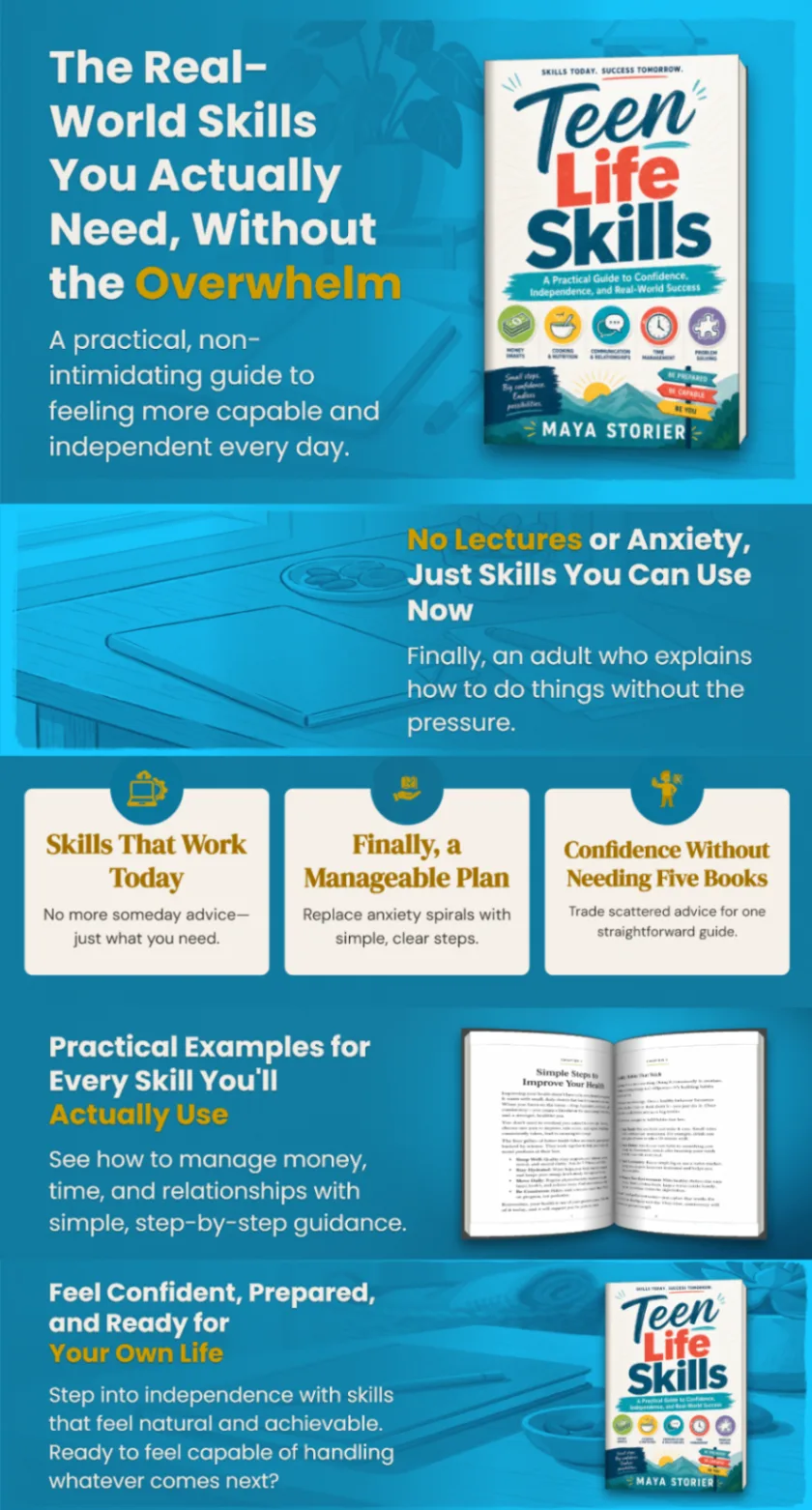
If designing each image feels like a separate marketing job, a tool or professional designer can help turn your book details into a coordinated set. Looking at sample module stacks can also give you a feel for what a finished set looks like before you start.
4. Review the content and layout
Check the images at full size and at phone size. Make sure the text is clear, the book title is accurate, and the design matches the book.
Also check Amazon’s A+ Content rules. For example, do not add prices, discounts, customer reviews, QR codes, or off-Amazon links to the A+ content. Avoid unsupported claims and promotional language. Review the KDP A+ Content Guidelines before submitting.
A+ Content can help make a page feel more complete, but it cannot replace a strong cover, accurate book details, or a well-written description.
5. Upload and submit in KDP
Sign in to KDP and open Marketing. Go to A+ Content Manager and start a project. Select the language, add modules, and upload your images.
Next, apply the A+ project to the correct book ASINs. Preview the content on desktop and mobile. Check for missing images, typos, and layout issues. Submit it for review.
The KDP help page explains the current workflow in more detail: Create A+ Content. A+ Content is available for eligible published books and pre-orders. You may need to create and publish content separately for each marketplace.
Competing visually without a large-publisher design team
Large publishers often have dedicated production teams. Independent authors can still make a product page easier to scan with a focused message and a consistent visual system, without a publishing house behind them.
The goal is not to imitate a major publisher’s style. Show the reader what your book offers. Use relevant details, accurate copy, and clean images. A coordinated set of modules can make an Amazon page look more complete without making unsupported claims about sales or rankings.

When you do not want to do the design yourself
You are the author, not the art department. If you have opened Canva three times and still have absolutely nothing, choose a process that fits the amount of work you want to handle.
- Use KDP’s tools yourself if you want to control the process and can prepare the images.
- Hire a designer or publishing service if you want expert help with the creative work. Confirm the scope, revisions, and delivery format first.
- Use a design tool if you want help generating a starting set and are comfortable reviewing and uploading the files yourself.
This is exactly the problem A-Plus Author Studio was built to solve. You enter your book details, and the studio researches your book and generates five coordinated, Amazon-ready PNG modules. You download the files and upload them to Amazon’s builder yourself, on your own schedule. There is no monthly subscription, and the introductory price is a one-time $97, with AI provider usage billed separately. You keep your finished files and can use the studio for your future books too. It does not submit the content or guarantee Amazon approval, but it takes you from a blank canvas to a coordinated set in minutes. See the workflow details and pricing to check whether it fits your needs, or visit A-Plus Author Studio to see completed examples and get started.

Start with the information you already have
You do not need another course. You need to make the first decision. Write down the book’s audience, its central promise, and the five points a reader should understand. That outline can guide a do-it-yourself design, a conversation with a freelancer, or a tool-assisted workflow.
A+ Content is one part of your book’s Amazon page. Build it from accurate book information, check the files carefully, and submit it through KDP when it is ready. You know your book is good. Your Amazon page should look like it.
If you would rather skip the design work, A-Plus Author Studio can turn your book details into five coordinated, Amazon-ready images.